
How to take screenshots from a video automatically, every few seconds
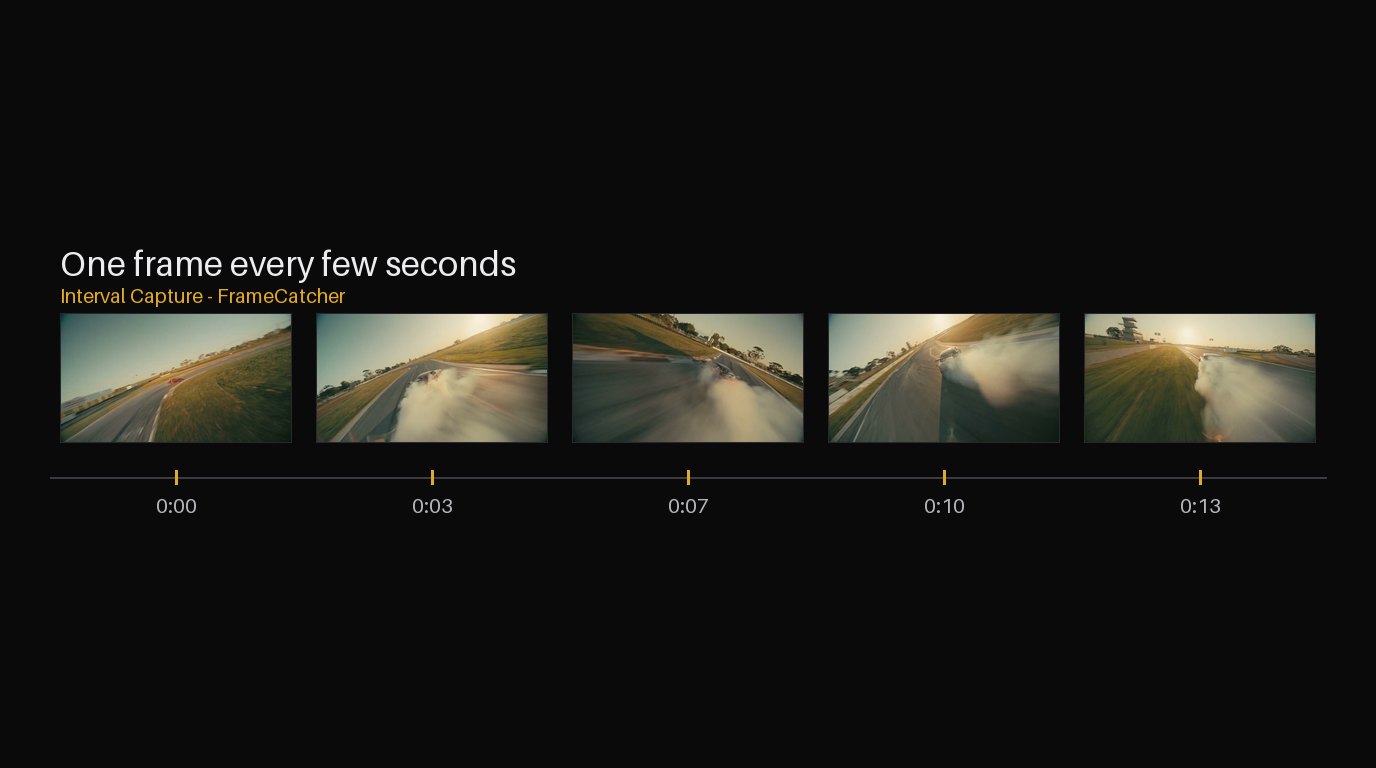
Sometimes you do not want the best frame of each shot. You want a frame at a steady beat: one every few seconds, all the way through. That is how you turn a screen recording into step-by-step images, a webinar into slides, or a long clip into an even strip of stills. Doing it by hand means pausing, screenshotting, nudging, and repeating until your patience runs out, and the spacing still comes out uneven.
When an interval beats shot detection
Shot detection is perfect when your video has cuts and you want the strongest frame of each one. But plenty of video has no cuts at all: a screen recording, a single-take talking head, a lecture, a gameplay capture, a long drone shot. There are no shots to detect, so what you actually want is a frame on a fixed clock.
Interval capture ignores cuts entirely and samples on time instead. Pick a spacing, say one frame every five seconds, and you get an even, predictable set of stills from start to finish.
What people use it for
Turning a software screen recording into the numbered screenshots a how-to guide needs. Pulling the slides back out of a recorded webinar or lecture. Sampling a long event or travel video down to a browsable contact sheet. Building the frame sequence for a timelapse or a flip-through.
In each case the value is the even spacing. You are not hunting for one great moment, you are documenting the whole thing at a regular step.
How to do it without pausing a hundred times
Drop the video in, switch to interval capture, and set the gap between frames: a few seconds for a short clip, longer for something that runs an hour. The frames are captured for you, evenly spaced, with their timestamps.
Skim the results, keep the ones you need, and export them as a ZIP, or lay them into a contact sheet to see the whole video at a glance. No scrubbing, no manual screenshots, and the spacing is exact every time.
Try it yourself
Upload a video and see it work. Preview is free before you sign up.
Screenshot a Video at Intervals